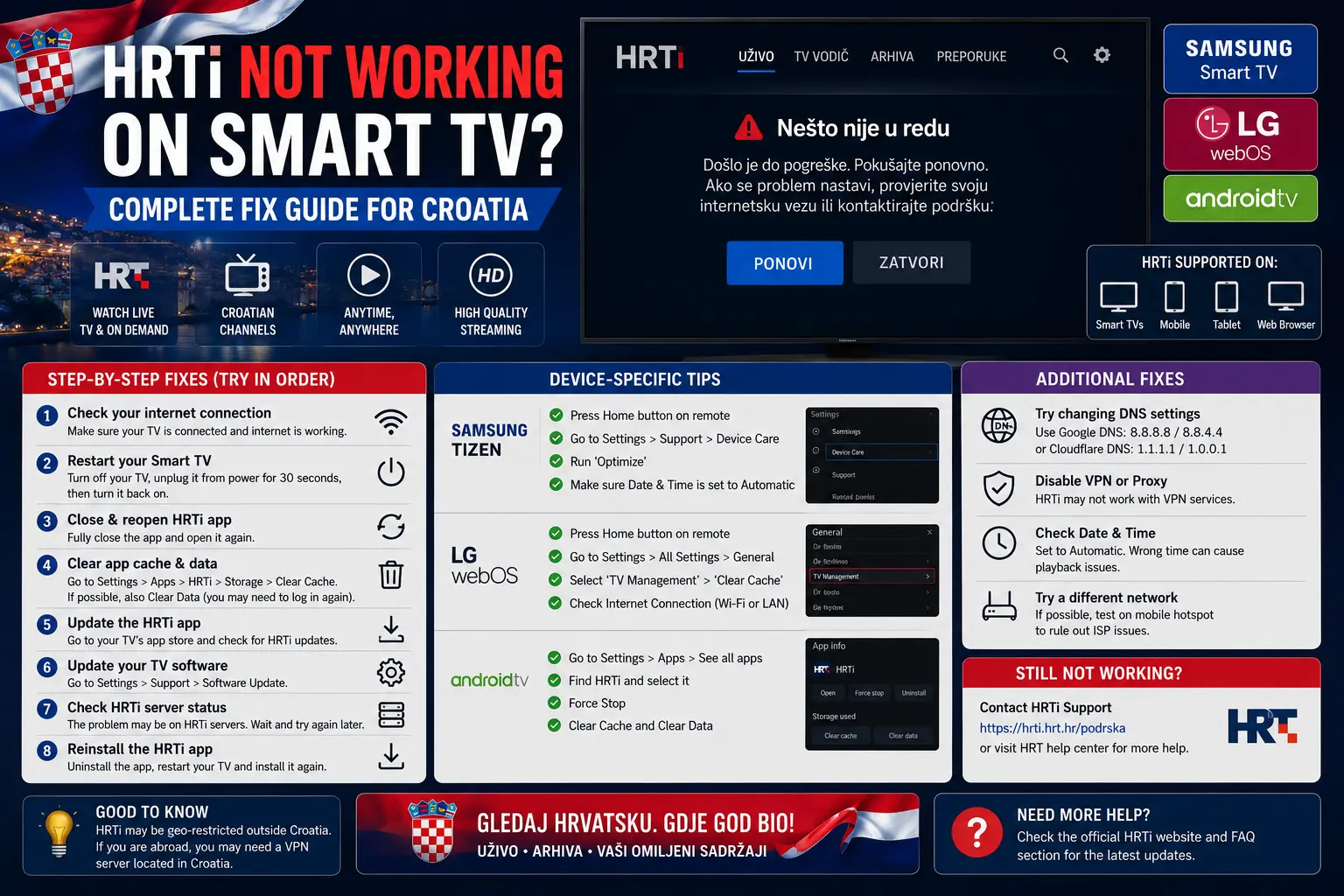
Start with the official HRTi basics
HRTi is the official multimedia service from Hrvatska radiotelevizija for watching and listening to HRT television and radio content online. HRT describes the service as available across computers, smartphones, tablets, Samsung and LG Smart TVs, Chromecast, Amazon Fire TV, Android TV and Android TV box-style devices. Before troubleshooting, it is important to remember that HRTi is an official app ecosystem, not a generic video player.
That matters because each device has its own requirements. A stream that works on your phone may fail on an older TV. A browser session may work while a Smart TV app shows an error. A live programme may behave differently from catch-up content because broadcast rights and location rules can apply.
For basic service information, device availability and registration details, check HRT's official HRTi multimedia service page and the official HRTi frequently asked questions. Those pages should be your reference before assuming the problem is your television or internet provider.
Quick checklist: what to try first
When HRTi stops working, people often jump between settings too quickly. A better approach is to test one layer at a time. Start with the easiest fixes and only move deeper if the issue remains.
- Close the HRTi app completely and open it again.
- Restart the Smart TV, Fire TV, Android TV device, phone or tablet.
- Restart the router and wait for the connection to stabilise.
- Check whether another app, such as YouTube or a browser video, plays normally.
- Update HRTi from the device app store.
- Update your TV or streaming device firmware.
- Sign out and sign in again if the app is stuck on account data.
- Test HRTi on a second device to see if the issue is device-specific.
If HRTi works on your phone but not your TV, the issue is likely related to the TV app, the TV software, storage, cache or device compatibility. If it fails on every device in the same house, look at your internet connection, router, account status or a temporary platform issue.
Isprobajte CroTV4K besplatno 24 sata
Testirajte CroTV4K na svom Smart TV-u, Firesticku, Android boxu, mobitelu ili tabletu. Provjerite hrvatske kanale, sport, filmove i kvalitetu streaminga prije odabira plana.
HRTi login problems: account, password and verification
Login issues are common because streaming apps keep sessions, tokens and saved account data. If your login details are correct but the app refuses to open, the saved session may be broken. Sign out fully, restart the app, then sign in again.
HRT explains that registration can require accurate email and password entry, Captcha, acceptance of terms, and confirmation of the email within the required period. If you created an account but never confirmed the email, the app may not behave as expected. Check your inbox and spam folder for the confirmation message.
On a Smart TV, entering passwords with a remote is slow and mistakes are easy. If possible, first confirm that your account works on a phone or computer. Once you know the account is valid, return to the TV and sign in carefully. Avoid adding spaces before or after the email address.
If you forgot your password
Use the official password recovery process instead of creating multiple new accounts. Multiple accounts can make troubleshooting more confusing, especially if the TV remembers an older login. Reset the password, confirm it on a browser or phone, then sign in again on the TV.
Playback error on HRTi: what it usually means
A playback error can mean several things. The app may not be able to load the stream, your connection may be unstable, the content may have rights restrictions, the device may be unsupported, or the app may need an update. The error message alone does not always tell you the full cause.
HRT's FAQ includes topics such as internet connection, outdated browsers or operating systems, playback errors on phones or tablets, and Smart TV playback messages. That means HRTi problems are often tied to normal compatibility and connection checks rather than one hidden setting.
Smart TV fixes: Samsung and LG
Smart TVs are convenient, but they can be difficult to troubleshoot because each model has a different operating system and update policy. HRT lists Samsung and LG Smart TV support in its official HRTi information, and the FAQ separates Samsung and LG compatibility questions. If the app disappeared from your TV store, your model may be too old or your region/software settings may not match the current requirements.
Start with a full TV restart. Do not only press the power button on the remote if that puts the TV into standby. Turn the TV off, unplug it for one minute, then plug it back in. After that, open the app store, check for HRTi updates and update the TV software from the system settings.
Samsung Smart TV checklist
- Open Apps and search for HRTi again.
- Update the HRTi app if an update is available.
- Update the Samsung TV software.
- Restart the TV by unplugging it for one minute.
- Delete and reinstall the app only after trying the previous steps.
LG Smart TV checklist
- Open the LG content/app store and search for HRTi.
- Update webOS if the TV offers a system update.
- Restart the TV fully, not only standby mode.
- Check if other streaming apps play normally.
- Reinstall HRTi if the app remains frozen or cannot load.
If HRTi works on a phone but keeps failing on an older TV, the easiest long-term solution may be an external streaming device. HRT lists Amazon Fire TV, Android TV and Android TV box-style devices among supported platforms, so a small external device can sometimes be more reliable than an ageing Smart TV app.
Android TV, Fire TV and mobile app fixes
On Android phones, tablets and Android TV devices, the official HRTi OTT app on Google Play is the safest place to check the current app version and device compatibility. If you installed the app from an unofficial source, remove it and use the official store where available.
Mobile devices usually make troubleshooting easier. Update the app, restart the phone, switch between Wi-Fi and mobile data, and test again. If HRTi works on mobile data but not on home Wi-Fi, your router or ISP connection is the next area to inspect. If it fails on both, check account status, app updates and service availability.
On Fire TV or Android TV, low storage can cause apps to behave badly. Remove unused apps, restart the device and avoid running heavy background processes. If the device is hot or hidden behind the TV, give it airflow. Heat can make small streaming devices slow or unstable.
Browser issues on laptop or desktop
For computers, HRT says users do not need a separate app; they can access HRTi through a browser and register/sign in from the web. Browser issues are usually caused by outdated browser versions, blocked cookies, extensions, VPNs, ad blockers or old operating systems.
Use a modern browser and update it first. Then try private/incognito mode. If playback works there, one of your extensions or cached files is likely interfering. Clear site data for HRTi, disable aggressive blockers temporarily and test again.
If you are using Safari on an older Mac, check HRT's FAQ because it specifically mentions playback issues on MacOS and Safari. Testing in Chrome, Firefox or Edge can quickly tell you whether the issue is browser-specific.
Wi-Fi and internet checks in Croatia
A stream can fail even when the internet appears to work. Browsing websites is light; live TV and video streaming require stable bandwidth over time. Croatia has a mix of fibre, cable, VDSL, mobile broadband and rural connections, so the best fix depends on your home network.
The European Commission notes that HAKOM provides HAKOMetar, a tool where users can examine the quality of internet access services. If your connection regularly drops, measuring the connection can help you separate an app issue from a broadband quality issue. You can also compare HRTi against other apps: if all video apps buffer, the app is probably not the main problem.
- Use Ethernet for Smart TV or Android TV when possible.
- Use 5 GHz Wi-Fi when the device is close to the router.
- Use 2.4 GHz only when distance and walls are the bigger problem.
- Move the router away from thick walls, metal objects and closed cabinets.
- Pause large downloads, console updates and cloud backups during live viewing.
- Restart the router before important live programmes.
If you often watch sports, use the same preparation routine we recommend in our Croatia World Cup 2026 viewing guide: open the app early, test playback, keep a backup device ready and do not wait until kickoff to fix the connection.
When content is blocked or unavailable
Not every error is technical. HRT explains that HRTi can be used outside Croatia only where copyright and contractual obligations allow it. If content is protected, it may not be available outside Croatia. This is especially important for films, foreign shows and live sports.
If HRTi says you are outside Croatia when you are not, first turn off VPNs, proxy apps, private DNS tools or browser extensions that route traffic through another country. Restart the router and test again. If the issue continues, contact HRTi support with your device, internet provider and error message.
Avoid random websites that claim to bypass restrictions. They often create more problems: unsafe pop-ups, fake play buttons, unstable streams and poor privacy. For Croatian television categories and safe organisation tips, read our Croatian channels guide.
Isprobajte CroTV4K besplatno 24 sata
Testirajte CroTV4K na svom Smart TV-u, Firesticku, Android boxu, mobitelu ili tabletu. Provjerite hrvatske kanale, sport, filmove i kvalitetu streaminga prije odabira plana.
Device-by-device troubleshooting table
| Device | Common problem | Best first fix |
|---|---|---|
| Samsung Smart TV | App missing, freezing or playback error | Update TV firmware and reinstall HRTi if needed |
| LG Smart TV | App loads but stream fails | Restart TV fully, update webOS and test another video |
| Android TV | App crash or slow loading | Clear storage, update app and restart device |
| Fire TV | Buffering or overheating | Restart device, free storage and improve Wi-Fi signal |
| Mobile | Login or playback issue | Update app, test Wi-Fi vs mobile data |
| Laptop | Browser playback error | Update browser, clear site data, test another browser |
Should you clear cache or reinstall the app?
Clearing cache or reinstalling can help, but it should not be the first step on every device. First restart the app and device. Then update. If the app still freezes, fails to load thumbnails or keeps showing the same error, reinstalling is reasonable.
After reinstalling, sign in again and test one short video before opening live TV. If the same error returns immediately, the cause may be account, compatibility, rights or connection rather than corrupted app data.
When to contact support
If you tried account checks, app updates, device restart, router restart and another device, it may be time to contact support. Prepare useful details: device model, operating system version, app version, your city or country, the exact error message and whether the problem affects live TV, catch-up or all content.
HRT lists HRTi support contact details on its official pages. Give them precise information instead of only saying “it does not work”. The more specific your report is, the easier it is to identify whether the issue is app compatibility, location, content rights or a temporary service problem.
Final thoughts
HRTi problems can be annoying, especially before live sport, news or family viewing. But most issues can be narrowed down with a simple process: confirm the account, update the app, restart the device, test the internet, check another screen and only then reinstall or contact support.
Keep the setup simple. Use official apps, avoid suspicious links, prepare your Smart TV or streaming device early and keep a second device ready as a backup. That approach is better for everyday Croatian TV, match nights and any important live event.
Frequently asked questions
Why is HRTi not working on my Smart TV?
The common reasons are an outdated TV app, unsupported TV model, old firmware, weak internet connection, temporary app issue, or a login/session problem. Start by updating the app and TV software, then restart the TV and router.
Does HRTi work on Samsung and LG Smart TVs?
HRT lists Samsung and LG Smart TVs among supported platforms, with minimum supported versions explained in its official FAQ. If the app is missing, your model or software version may not be supported.
Why does HRTi show a playback error?
Playback errors can happen because of connection instability, outdated app or operating system, expired login session, protected content, device compatibility or temporary service issues.
Can I use HRTi outside Croatia?
HRT says the service can be used outside Croatia only where rights and contractual obligations allow it. Some protected content may not be available outside Croatia.
Should I use a VPN to fix HRTi?
A VPN is not a reliable fix. It may create location errors, slow down video, or make the platform think you are outside the allowed area. Start with app, device and Wi-Fi troubleshooting first.
What internet setup is best for HRTi on TV?
Use Ethernet if possible. If you use Wi-Fi, place the router close to the TV, use 5 GHz when the device is nearby, restart the router, and reduce heavy downloads during live viewing.
Need help with your TV setup?
Message CroTV4K on WhatsApp and tell us your device model, app name and the error you see. We can help with general setup, Wi-Fi checks and playback troubleshooting.
Contact CroTV4K on WhatsApp